 huntress.comwriteup
Defender Exclusion Abuse: How Attackers Hide Malware from MDAV
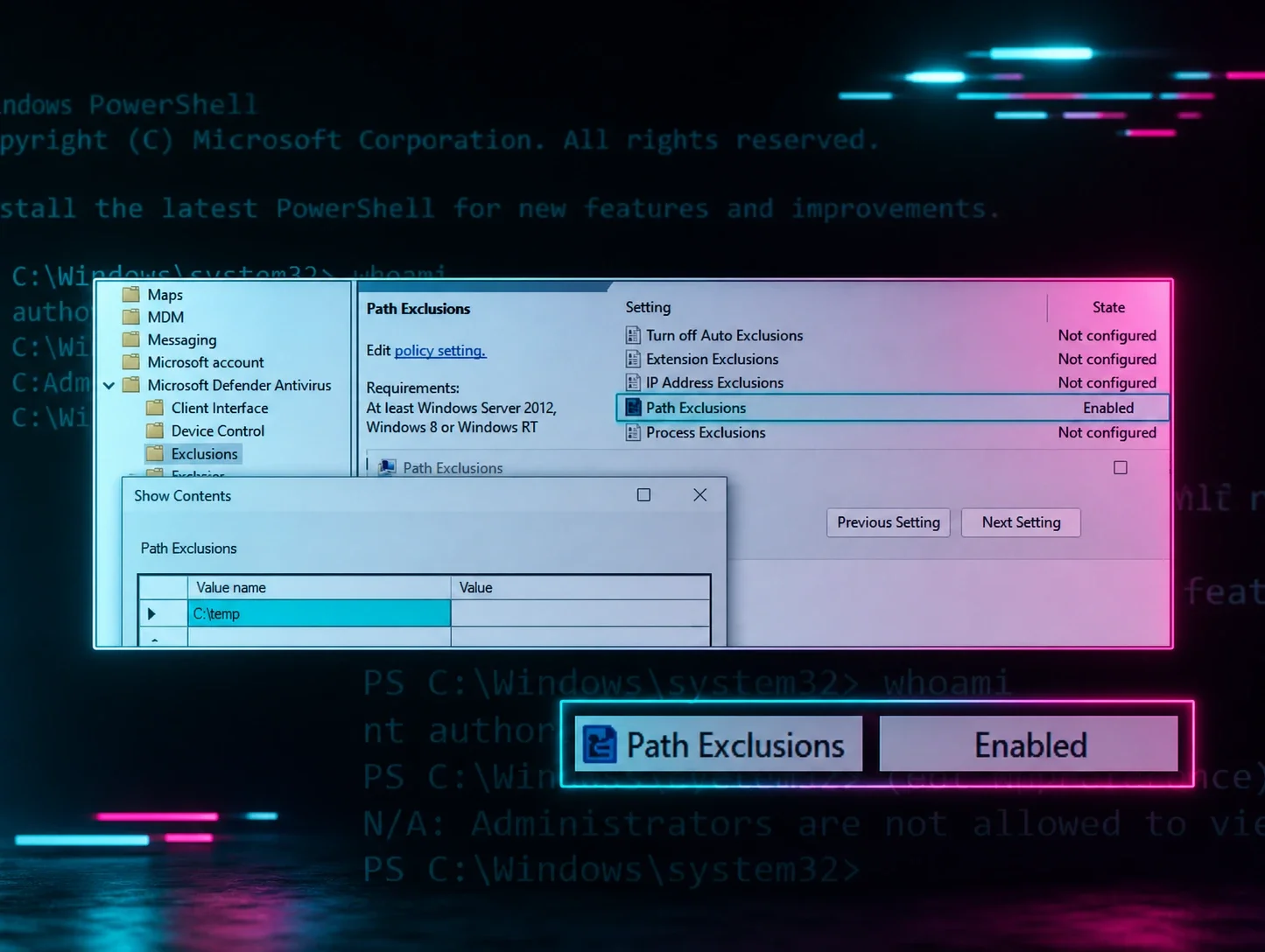
Huntress breaks down how Microsoft Defender Antivirus (MDAV) path/extension exclusions can be abused to hide malicious binaries from scans, detailing the registry internals (HKLM...Windows Defender\Exclusions vs the GPO-driven Policies key) and the four ways to set them: PowerShell (Set/Add-MpPreference), the MSFT_MpPreference WMI class, GPO, and direct registry edits. It documents real-world abuse by GootKit (2019), WhisperGate (2022), and Muddled Libra (2024), plus an under-documented trick where setting HideExclusionsFromLocalAdmins blocks even SYSTEM from querying exclusions via PowerShell/WMI, and describes the registry-level telemetry and detections Huntress built to catch both behaviors.
What it is
Huntress's breakdown of Microsoft Defender Antivirus (MDAV) Path/Extension exclusion abuse. Beyond the summary's named campaigns and registry map, the page carries the verbatim commands for each injection method and two operational constraints the summary omits: which registry key is actually writable, and how defenders recover visibility after HideExclusionsFromLocalAdmins is set.
How it works
The two exclusion types attackers care about are Path and Extension — both remove the matching path/process from scheduled scans, on-demand scans, and always-on real-time protection. All four setting methods ultimately land in the registry, which is why Huntress instruments at the registry layer rather than per-method.
Key detail the summary flattens: the MDAV-owned key HKLM\SOFTWARE\Microsoft\Windows Defender\Exclusions is locked down — you cannot reg add to it directly. The writable target is the GPO key HKLM\SOFTWARE\Policies\Microsoft\Windows Defender\Exclusions, and a direct edit there requires a reboot to take effect. A query via (Get-MpPreference).ExclusionPath reads both keys merged.
What to do
The injection commands (useful for building detections / red-team validation):
Set-MpPreference -ExclusionPath C:\Temp
Add-MpPreference -ExclusionPath C:\Temp
Invoke-CimMethod -Namespace root/Microsoft/Windows/Defender -ClassName MSFT_MpPreference -MethodName Add -Arguments @{ExclusionPath=@("C:\Temp"); ThreatIDDefaultAction_Ids=@([Int64]1,[Int64]2,[Int64]3,[Int64]10); ThreatIDDefaultAction_Actions=@([Byte]1, [Byte]2, [Byte]3, [Byte]10); Force=$true}reg add "HKLM\SOFTWARE\Policies\Microsoft\Windows Defender\Exclusions\Paths" /v "C:\Temp" /t REG_SZThe hide switch:
HKLM\SOFTWARE\Policies\Microsoft\Windows Defender\HideExclusionsFromLocalAdminsDefender workaround the summary doesn't state: once HideExclusionsFromLocalAdmins is set, Get-MpPreference/WMI queries return nothing even for SYSTEM — but admins and SYSTEM can still read exclusions by querying the registry keys directly. Any tooling that enumerates exclusions via PowerShell/WMI will be blind; reading the registry is the reliable path. Detect on both the exclusion-set and the hide-flag registry writes.
Caveats
GPO-key edits need a reboot, so a direct-registry exclusion is not immediately active — a narrow window where the malicious path is still scanned.
Organisations named here
- HideExclusionsFromLocalAdmins
Technologies named here
- Microsoft Defender Antivirus
- Huntress Managed EDR
- PowerShell
- Windows
- WMI
- Group Policy
- ProcMon
- reg add
- Windows Defender
Techniques named here
- Defender exclusion abuse via PowerShell
- Defender exclusion abuse via WMI
- Defender exclusion abuse via GPO
- Direct registry modification of GPO exclusion key
- Hiding exclusions via HideExclusionsFromLocalAdmins
Threat actors named here
- GootKit
- WhisperGate
- Muddled Libra
Related in Blue Team & Detection
 huntress.comwriteup
AI-Coded Malware | Analyzing Vibe-Coded AD Enumeration | Huntress

 blog.talosintelligence.comtool
Introducing CAIRN: Frontier tracking for AI-integrated malware (Cisco Talos)
 huntress.comwriteup
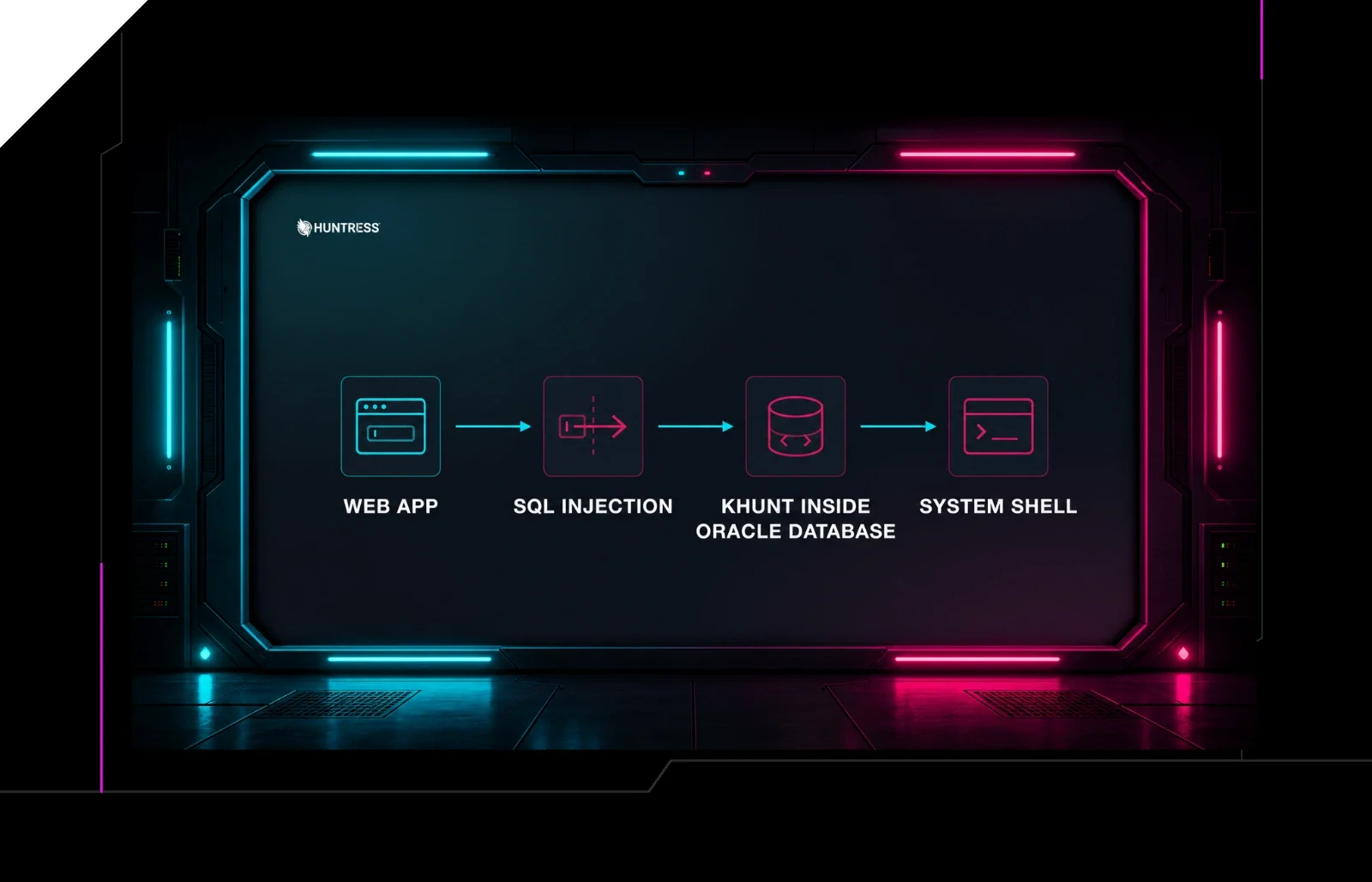
Inside an Oracle Database SQL Injection Attack | Huntress
 huntress.comwriteup