salesforceben.comarticle
Salesforce Connected Apps Audit Guide
A step-by-step guide for Salesforce admins to audit Connected Apps (OAuth-based integrations) following attacks where users were tricked into authorizing a fake Data Loader app that exfiltrated data instead of the genuine tool. It covers reviewing installed vs. user-authorized apps, blocking unrecognized or unused apps, enforcing 'Admin Approved Users' with Permission Sets, requiring high-assurance (MFA) sessions, and enabling API Access Control to allowlist which Connected Apps can use Salesforce APIs.
What it is
A step-by-step Salesforce admin procedure for auditing Connected Apps after the fake–Data Loader social-engineering campaign, in which users were tricked into OAuth-authorizing a counterfeit Data Loader that exfiltrated org data. The value beyond the summary is in the concrete verification signals and side-effects of each action.
How it works
Any user with the API Enabled permission can grant a Connected App access by default — this is the exposure the attack abuses. Apps come in two states that matter: installed (an admin explicitly added it, so App Policies are editable) and user-authorized (a user granted it, no admin policy control). You can only edit Permitted Users, session timeout, and high-assurance settings on installed apps; to control a user-authorized one you must install it first.
What to do
Pull an inventory via Setup → Connected Apps OAuth Usage or SOQL, then triage:
- Verify Salesforce-native apps by the blue arrow next to the name under Manage Connected Apps, and by namespace
sf_com_appsorsf_chttr_apps. Namespaces are unique, so these can be trusted. - Block anything unrecognized or unused. Blocking is reversible (unblock later) but immediately disconnects all active sessions.
- Detect the counterfeit: if you try to install a genuine app and Salesforce refuses because one with that name already exists, investigate — it may be a malicious duplicate already installed rather than the real one.
- Harden installed apps: set Permitted Users to Admin Approved Users and grant access via Permission Sets/Profiles (least privilege); set a session timeout; optionally require high-assurance (MFA) sessions.
High-assurance has two modes: Switch to high assurance forces identity re-verification; Blocked locks all users out. Test after enabling — it only works for apps using a certain authentication type.
flowchart TD
  A[App in inventory] --> B{Recognized?}
  B -- No --> BLK[Block: disconnects sessions]
  B -- Yes --> C{Salesforce-native?<br/>blue arrow / sf_com_apps}
  C -- Yes --> KEEP[Trust]
  C -- No --> D{Used recently?}
  D -- No --> BLK
  D -- Yes --> E{Installed?}
  E -- No --> INS[Install to gain policy control]
  E -- Yes --> POL[Admin Approved Users +<br/>timeout + high assurance]
  INS --> POL
Caveats
The page states its steps assume a standard configuration; orgs with customizations may not get full coverage, and admins should adapt before changing settings. Blocking can break legitimate user access, so weigh it. Step 3 (API Access Control) is described as optional and is cut off in the fetched text.
Technologies named here
- Salesforce Connected Apps
- Gearset
- Salesforce Data Loader
- Connected Apps OAuth usage
- SOQL
- Salesforce Mobile App
- Manage Connected Apps
- External Client Apps
- Visualforce Pages
- API Access Control
- Security Centre
- Event Monitoring
- Login History export
- Salesforce
- OAuth
Techniques named here
- Social engineering via fake Connected App
Threat actors named here
- Unnamed social engineering attackers
Related in Identity & Access

 huntress.comarticle
Education Under Attack: The Pattern Behind Recent University Breaches
 huntress.comarticle
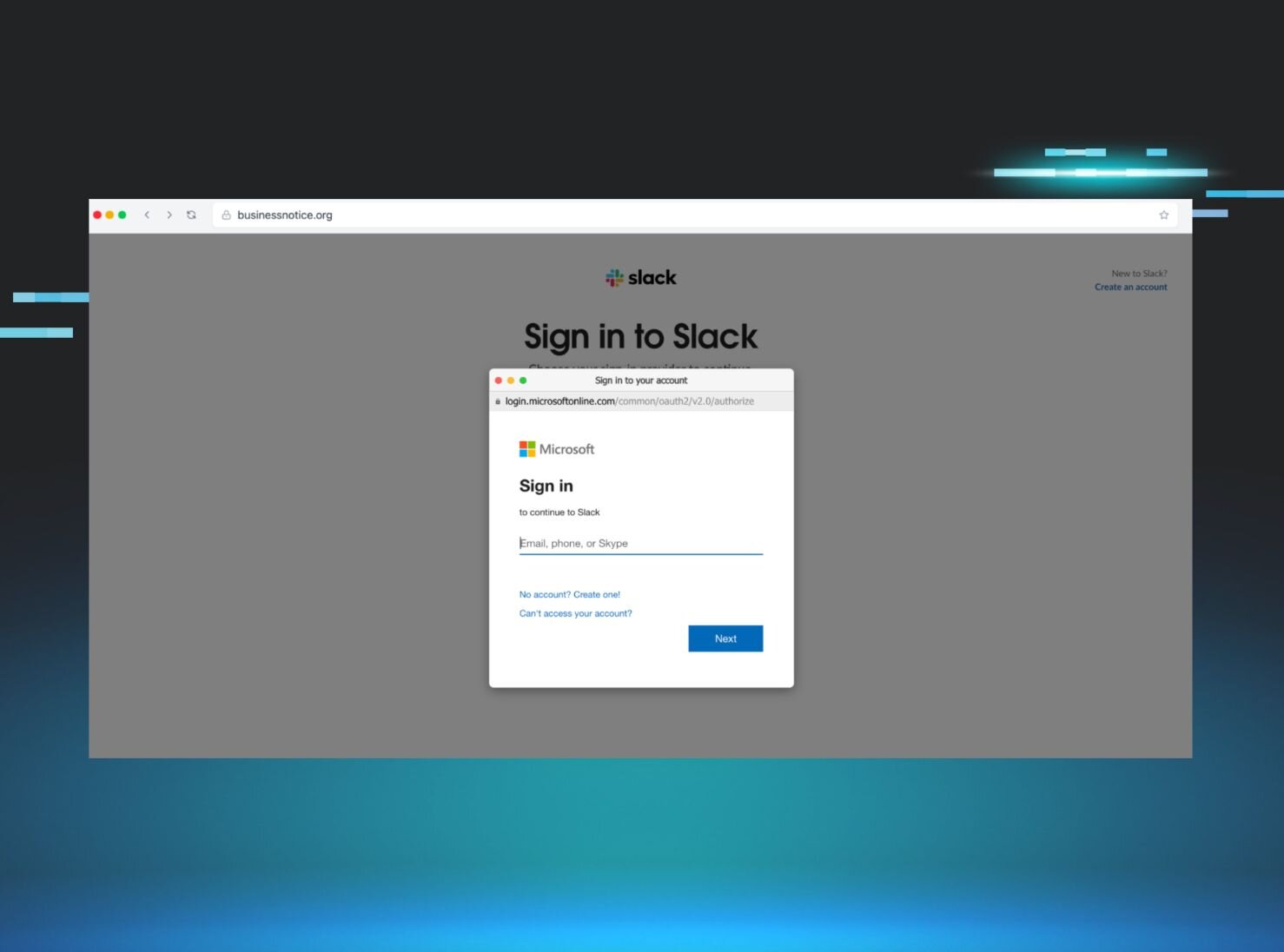
Next-Gen Phishing Tactics Users Aren’t Ready For | Huntress
.png)
 aikido.devwriteup
Google API keys keep working after you delete them